Advanced Bulk Photo Editor
Apply text, watermarks, and filters to multiple photos at once.
Select photos from your Device, drag and drop them here, or paste (Ctrl+V) them from your computer.
Output Settings
Tool Description
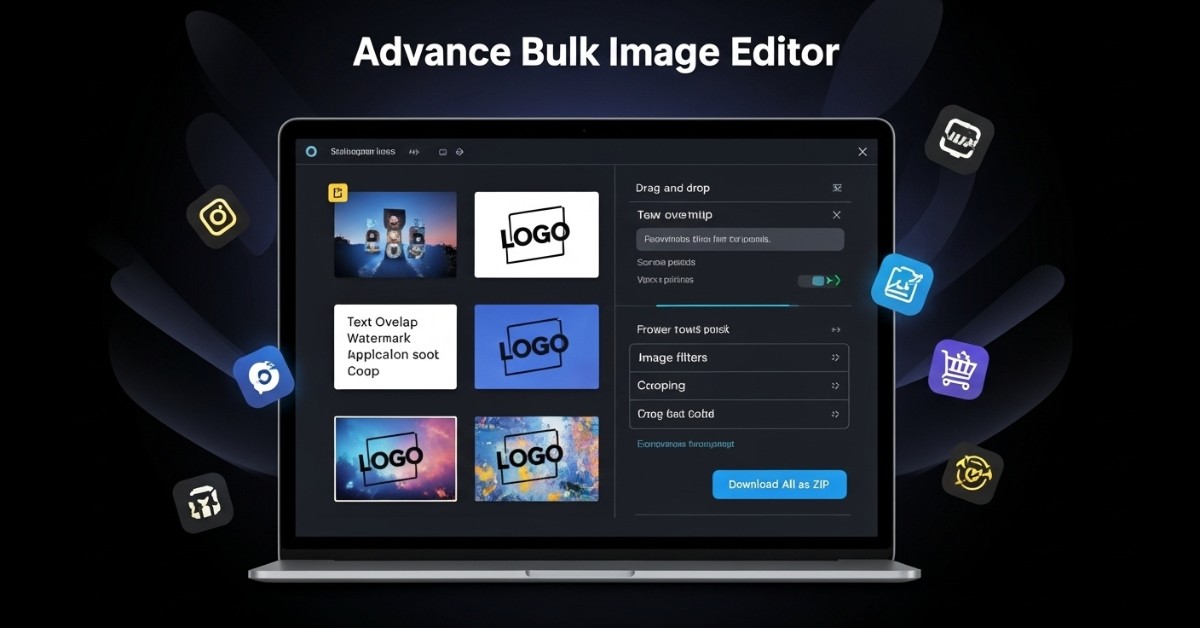
This Advanced Bulk Photo Editor is a powerful and very easy-to-use online tool that lets you apply text, watermarks, and filters to multiple photos at once. If you want to quickly add text to multiple images for e-commerce, for social media (e.g., Instagram, Facebook), whether it's the same text or different ones, this Advanced Bulk Photo Editor tool is perfect for you. You don't need to manually edit the caption text of each photo individually, because this tool has an option that lets you apply the same caption text to all images at once!
When and Why to Use This Tool?
Perfect for using a bulk photo editor to efficiently watermark or brand multiple images at once:
- Time Saver: If you need to add the same watermark or text to 100+ photos, this editor can do it for you in minutes. You don't need to manually do it all one by one in another editor.
- Professional Look: You can create a consistent and professional brand identity by giving the same font, color and filter to all your images, be it of a product or a portfolio.
- Security: It's easy to add a watermark to your image to prevent your work from being copied.
- Batch Processing: If you need to add watermark or branding text to 10 images in bulk in same format then this is the best tool.
When to Use It?
Ideal for using a bulk photo editor to quickly add text or logos to multiple images at once:
- E-commerce/Online Selling: When you need to add your brand name or some informational offer text on images for listing your new products.
- Photography: When you want to add your logo or personal notice to your photos.
- Social Media Marketing: When you want to maintain a visual theme for daily quotes or promotional material.
- Product Promotion: When you want to promote a specific product, you can include some related text at the top or bottom of the images.
How To Use Step-by-Step
The bulk photo editor is divided into 3 easy steps to use:
- Step 1: Upload Images
Go to "Step 1: Upload Images" section and click on "Select Photos From Your Device:". - Step 2: Choose the Editing Mode
In this step, you have to decide what you want.
Image with Text: If you want to add text (like product details, price, or quote) and watermark to the photo.
Image Only: If you just want to apply filter or overlay text on the image or just add watermark, that too without any extra text box.
- Step 3: Adjust the Settings
In Step 3 There are two (2) tabs:
1. Global Settings:
Text Layout: Choose where your text will appear—such as "Top & Bottom," "Top Only," "Bottom Only," "Single Top," or "Single Bottom."
Themes: Theme 1 (Odd Images) and Theme 2 (Even Images) have different text and text background color options for both themes. This lets you give each image a unique style.
Font & Align: Set the font family (e.g., Poppins) and text alignment (Center, Left, Right).
Image Filter: Apply filters like Grayscale, Sepia, or Invert to your images all at once.2. Watermark Settings (Logo):
-Watermark Upload: Upload your PNG logo file.
-Position: Choose where the logo will appear (e.g., Bottom Right).
-Opacity: Set the transparency of the watermark (e.g., 0.7 will make it appear slightly lighter). - Step 1: Download
After adjusting the settings, check the Previews ones.
In the Download section:
Select the format (JPG or PNG). If you choose JPG, you can also set the JPG quality. Finally, click the "Download All as ZIP" button. All edited images will be downloaded in a single ZIP file.
Frequently Asked Questions (FAQs)
Is this bulk photo editor tool free?
Yes, this tool is completely free. You can use all its features without any charges.
Are my uploaded photos safe?
Absolutely. All images you upload here for editing are safe because the image processing happens in your browser, no images are uploaded to our servers so your data remains 100% private and secure.
How many images can I edit at once with this tool?
For better performance, you can upload and edit up to 10 images at once.
What file formats of images are supported?
You can upload all common image formats like JPG, PNG, WEBG, etc. and download the final images in PNG or JPG format after editing.